The fastest way to learn the Smart Alert editor is to build one real alert and ask "why?" at every field. So let's do that together. We'll start from an idea in plain words, turn it into conditions one step at a time, and then let Ask Guru build the same thing from a single sentence.
Start With the Idea, Not the Screen
Here's ours: tell me when a level game is heating up late on. More precisely: one side has piled up shots and corners over the last 15 minutes, it's still a draw, and we're somewhere between the 66th and the 85th minute.
Notice the three parts of that sentence. They map straight onto the editor:
- What happens: shots and corners, a lot of them, recently. That's a condition.
- When: the second half, between minutes 66 and 85. That's the match period and minutes.
- In what situation: the score is level. That's the score situation.
Write your own idea down in the same shape before you open the app. It makes every later choice obvious.
Step 1: Open the Editor
Go to the Smart Alerts tab, tap Create New Smart Alert, and choose During the match. That's a live alert: Goal Guru checks it against every live match, minute by minute.
Step 2: Pick the Events
A condition starts with what to count. The condition type Events covers things that happen on the pitch: goals, corners, cards, shots on target, shots off target, blocked shots, fouls, goalkeeper saves, and more. You can tap several, and they're counted together.
We want pressure, not just goals, so we tap Shot On Target, Corner, and Shot Off Target. A corner usually comes from an attack that nearly worked, so it belongs in the count.
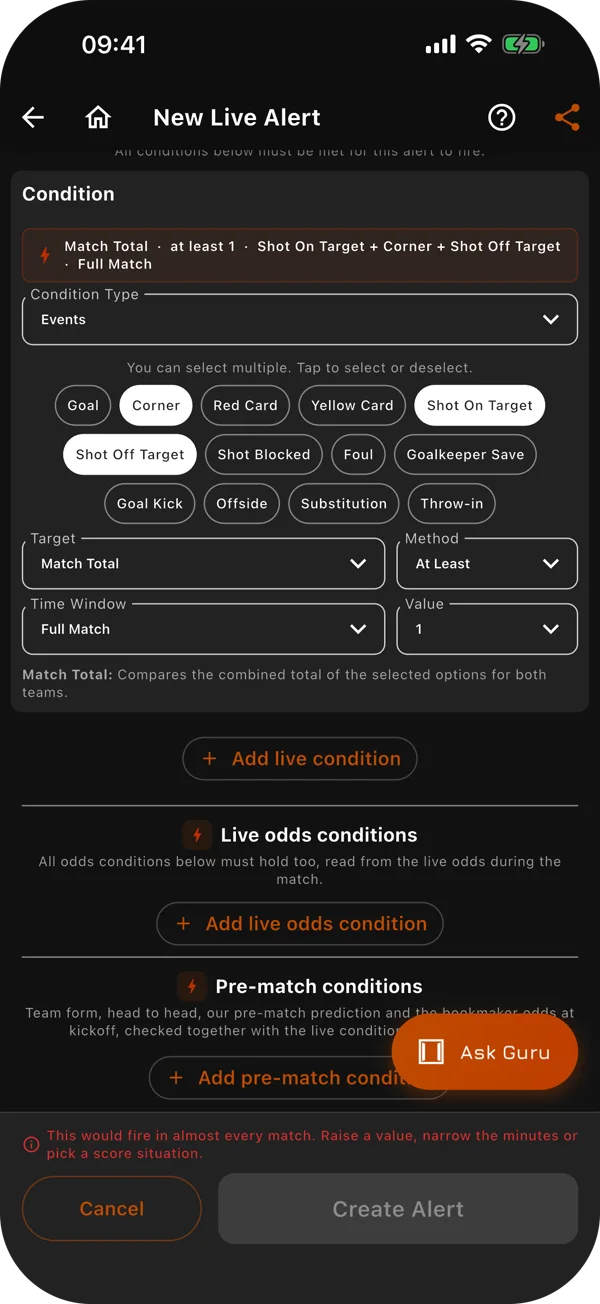
Events picked, everything else still on its default. The editor warns that this would fire in almost every match.
The editor tells you when it's too broad
Look at the bottom of the screen: "This would fire in almost every match. Raise a value, narrow the minutes or pick a score situation." With the defaults, our condition says "at least one shot or corner in the whole match", which is true for nearly every game. The warning is a good friend. We'll fix it in the next two steps.
Events aren't the only option. Attacks (count) and Attacks (minutes) measure attacks, dangerous attacks, and safe possession, and Stats covers numbers like expected goals (xG), shots inside the box, possession, shot accuracy, and pressure intensity. We'll come back to attacking minutes when Guru builds its version.
Step 3: Who, How Many, and Over What Window
Now the three fields under the chips:
- Target: Either Team. Match Total adds both sides together, so an open end-to-end game would count. Either Team compares the total for whichever team has more, which is what "one side is pushing" means. There are also Home Team, Away Team, Favourite Team, and Underdog Team, plus Lead, Percentage, and Share versions of each.
- Method and value: At Least 5. You can also pick Exactly or At Most.
- Time window: Last 15 Minutes. Full Match would count everything since kick-off. The last 15 minutes catches pressure that is building right now. Other windows include the last 10 or 5 minutes, either half, and After Last Goal.
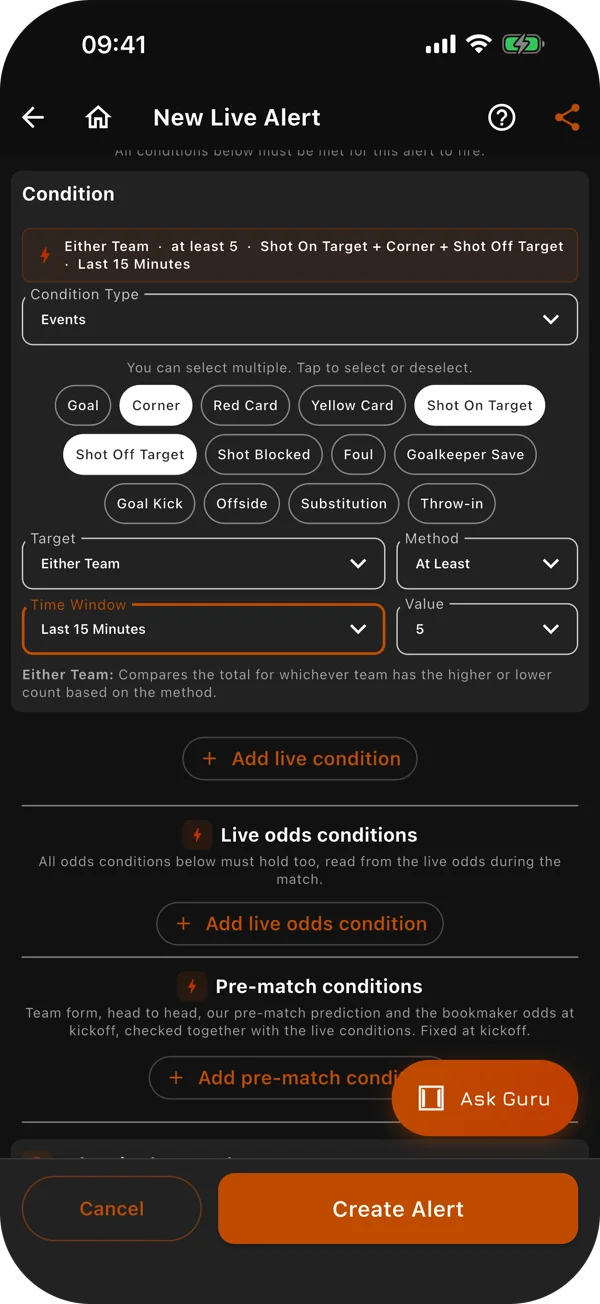
One condition, in words: either team has at least 5 shots or corners in the last 15 minutes.
Read the summary line at the top of the condition card. It turns the fields back into a sentence, so you can check it says what you meant.
Step 4: When in the Match
Scroll down to When in the match:
- Match period: Second Half. The minute slider follows the period, so in the second half it runs from 46 to 90.
- Match minutes: 66' to 85'. Before 66 the pressure has less meaning; after 85 there's little time left to follow what happens next.
- Score situation: Draw. This is what makes the alert specific. Other choices include either team leading, the favourite or the underdog leading, no goal yet, or at least one goal by a given side.
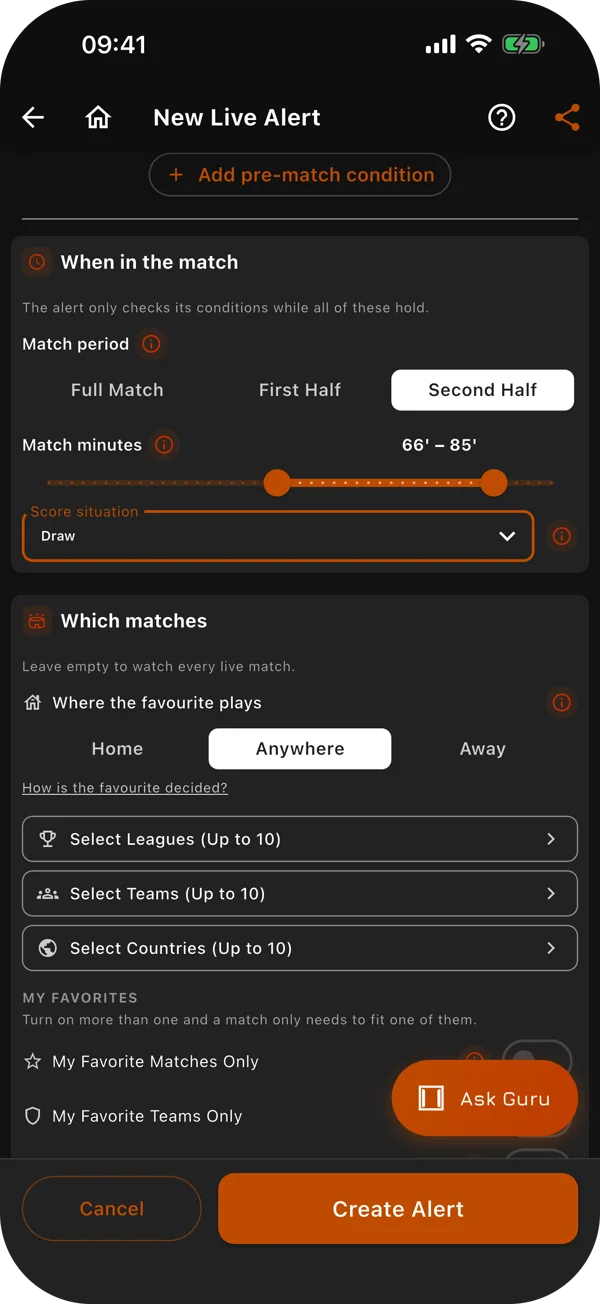
Second half, 66' to 85', only while it's level. The warning is gone.
Step 5: Which Matches
Leave Which matches empty and the alert watches every live match. You can narrow it to chosen leagues, teams, or countries, decide where the favourite plays (home, away, or anywhere), or turn on My favorites so it only checks your favourite matches or teams. If you turn on more than one favourites option, a match only needs to fit one of them.
Step 6: Name It, Choose How Often, Create
Give it a name you'll recognise on your lock screen. We'll call ours Late pressure, level game.
Then choose the Notification Frequency. For a late-game alert, Only Once per Match is right: one ping when it first fits, not a stream of them. Other choices include once per period, on every score change, only if no other Smart Alert has fired, or only if nothing fired in the last 5, 15, or 30 minutes.
Tap Create Alert. Goal Guru offers to backtest it right away (more on that below), and the new alert appears at the top of your list.
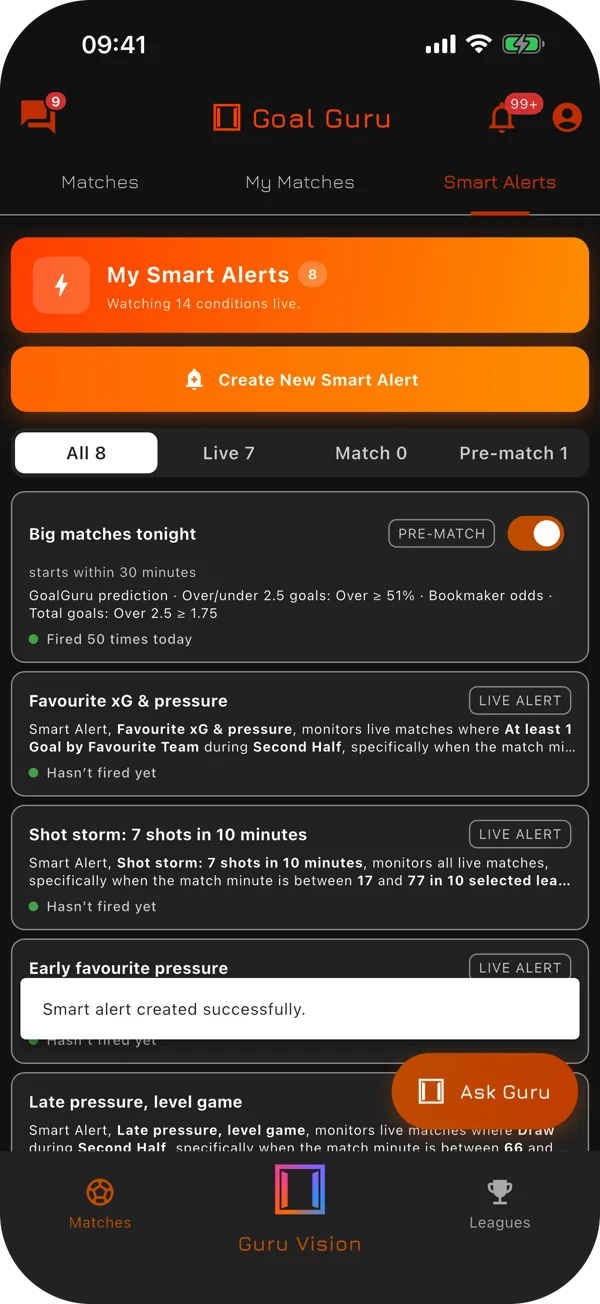
Created. The alert's card describes it in one sentence, so you can tell your alerts apart at a glance.
The Same Alert, in One Sentence: Ask Guru
Everything above took a few minutes. Ask Guru can do it in one message. Tap the Ask Guru button and describe what you're after in your own words. It can be a question or an instruction, and you can talk to it in any language.
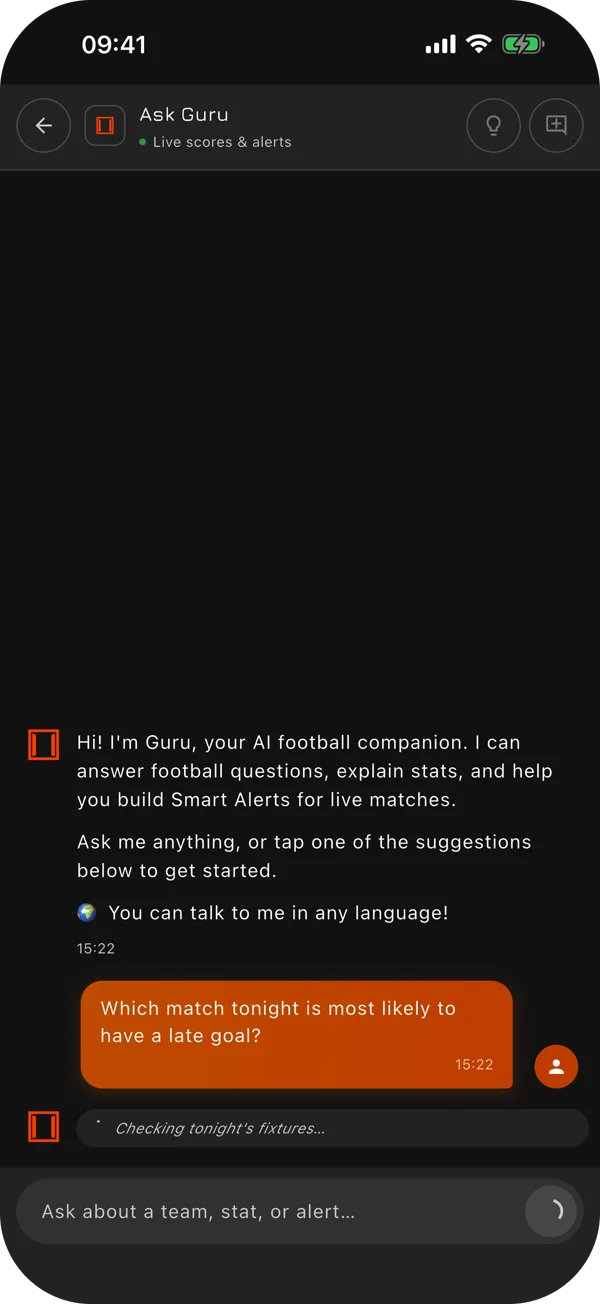
Ask in plain words. Guru reads the live numbers before it answers.
Guru answers, and when an alert would help, it proposes one as a card: the conditions, the minutes, the score situation, how often it notifies, and which leagues it covers. Every line is readable, so you can check it before anything is saved.
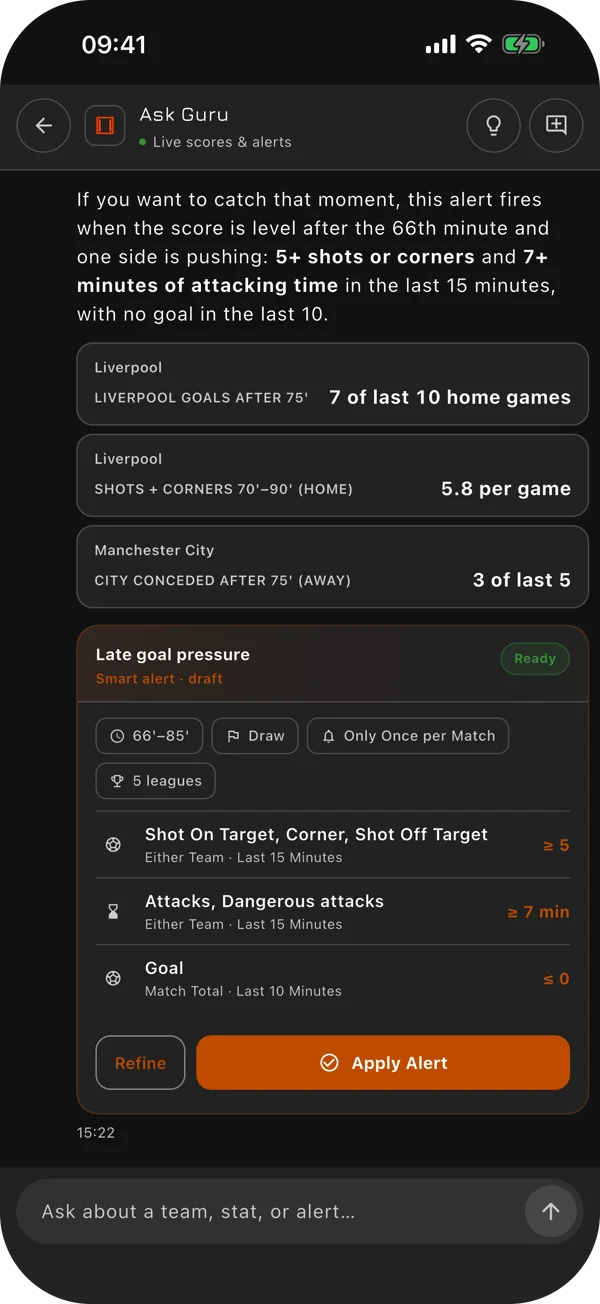
Guru's proposal: the same idea, plus two extra checks. Refine changes it in words; Apply Alert opens it in the editor.
Compare Guru's card with what we built by hand. It's the same core: either team, at least 5 shots or corners in the last 15 minutes, 66' to 85', a draw, once per match. It added two more conditions: at least 7 minutes of attacks and dangerous attacks in the last 15 minutes, and no goal in the last 10. That's a good habit to copy. Mixing an event count with attacking time asks two different questions, which keeps the alert from firing on a flurry of long-range shots alone.
Two buttons sit under the card:
- Refine lets you change it in words, like "make it 70 to 85" or "only the Premier League".
- Apply Alert opens the editor with every field filled in. Look it over, change anything you like, and tap Create Alert as usual.
When It Fires
When a match fits every condition, the notification names the alert, the match, and the score at that minute. Tap it, and the match opens. Its Smart Alerts tab shows the alert that fired, with the minute and the score.
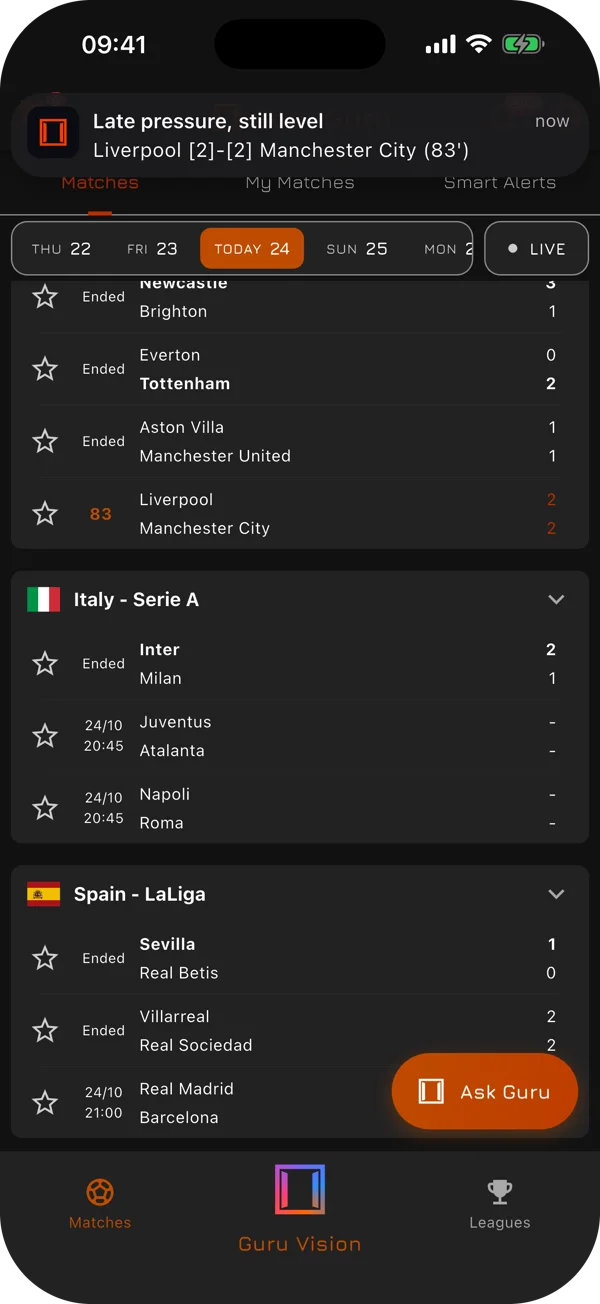
An alert of the same kind firing at 83': the alert's name, the match, the score.
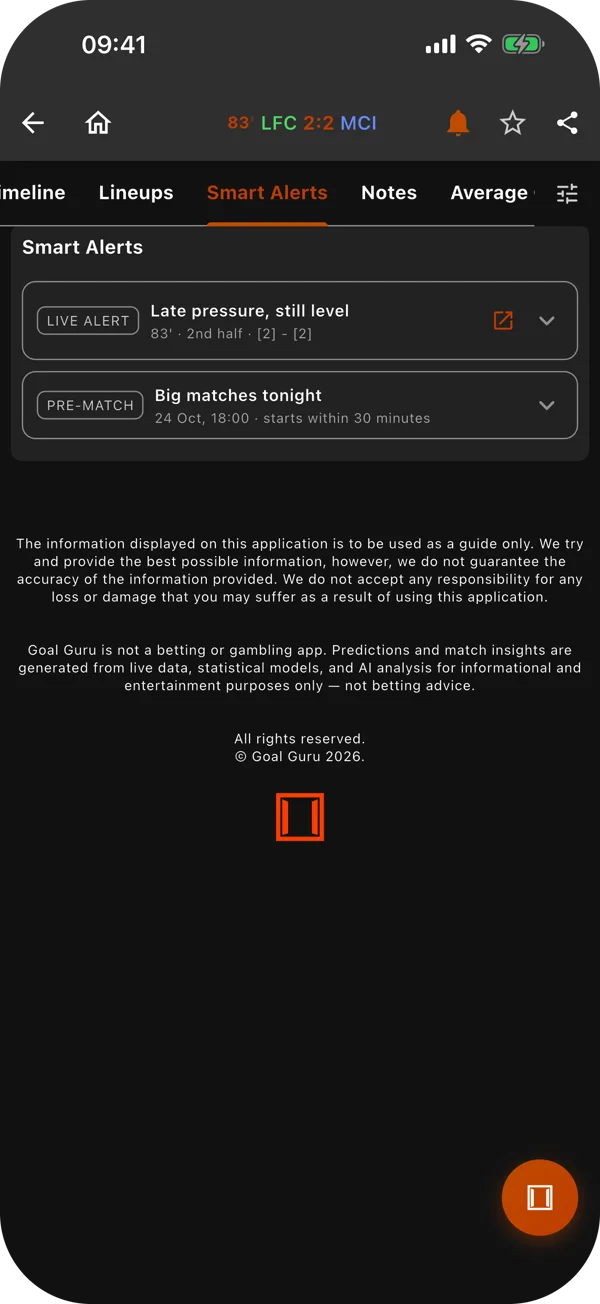
In the match, the Smart Alerts tab keeps the alert that fired, with the minute and the score.
Check It Against Real Matches
An alert that sounds right can still fire too often, or almost never. Before you rely on it, backtest it: Goal Guru runs it against real past matches and reports how many times it would have fired, at which minutes, and in which leagues. You can also set an aim, such as a goal after the trigger, and see how often that happened.
If it fires too often, raise a value or narrow the minutes. If it hardly fires, relax one condition at a time and run it again.
Five Habits for Good Alerts
- Write the sentence first. What, when, in what situation.
- Let the warning guide you. If the editor says it would fire in almost every match, it's right.
- Use the score situation. It's the cheapest way to make an alert specific.
- Mix sources. An event count plus attacking minutes beats two event counts.
- Check it, then tune it. Backtest, look at the matches it picks, change one thing at a time.
Want alerts that work before kick-off instead? The pre-match alerts guide walks through the same process with predictions, form, and head-to-head. And to choose exactly which match events notify you, see custom notifications.